
AI notetaker and meeting assistant for Google Meet, Teams and ZoomEvery call, written up. Two ways in.
Use the free browser extension for calls you take in Chrome, Brave or Edge: a prep brief, live notes from the captions and no bot. Or send the Align Notetaker into Google Meet and Teams calls you take in the app or on your phone. Either way, when you hang up each person's tasks are ready for Jira or Linear.
The extension is free and unlimited. The notetaker includes 3 hours a month on the free plan.
meet.google.com/kfp-ruxe-vtq

You · in the call chat
Align is taking notes for this call.
Align
ListeningUp to date · captions only, no audio
Listening for the first key point…
Capture this call with Align
Weekly launch sync · from your calendar
Weekly launch sync · 14 min · 4 people14m
length
3
speakers
1
decision
1
action
Decided
Launch Oct 3, behind the flag
Priya proposed · nobody objected · Dev owns support docs
Not settled? Open an Align Room
Two ways in
The extension or the notetaker. Same notes, same tasks.
Both turn the call into a summary, the decisions and each person’s tasks for Jira or Linear. They differ in how Align gets into the call. Most teams use the extension and send the notetaker to the calls it can’t reach.
Align extension
For calls you take in Chrome, Brave or Edge.
- Google Meet, Microsoft Teams and Zoom on the web
- A prep brief before, live notes and Ask Align during
- Reads the captions, records no audio, no bot joins
- Free and unlimited on every plan
Align Notetaker
For calls the extension can't reach: the Teams app, or your phone.
- Google Meet and Microsoft Teams, from any device
- Joins as "Align (your name)", every call or the ones you pick
- Summary, decisions and who's doing what when the call ends
- 3 hours a month free, more on paid plans
| Align extension | Align Notetaker | |
|---|---|---|
| Where it works | Google Meet, Teams and Zoom in Chrome, Brave or Edge | Google Meet and Teams, from any device or the Teams app |
| Joins the call as a participant | No, it runs in your browser | Yes, as "Align (your name)" |
| Live notes during the call | Yes, plus Ask Align and heads-ups | No, notes arrive when the call ends |
| How it starts | You press Start in the call | On its own for calls on your calendar, or paste a call link |
| Cost | Free and unlimited on every plan | 3 hours a month on Free, 10 per person on Team, 25 on Business |
How it works
How the extension works
Step 1 of 4
Read the prep
Before you press Start, the Prep tab shows what changed since the last meeting, what's blocked, everyone's standup and the decisions still open.
Chrome & Brave
Install from the Chrome Web Store in either browser, then click Connect to Align in the extension.
Open Chrome Web StoreAsk what's been decided, mid-call
Open the side panel and ask. Align answers from what's been said so far, and it uses the same rule for a decision as the wrap-up — so if nothing's agreed, it tells you so.
Align
LIVEA wrap-up, not a transcript dump
When you leave, Align drafts the decision with who proposed it, the action items with owners and dates, and the open questions. Confirm or edit, then send the recap to everyone on the invite.
Planning call · 14 min
14m
length
3
speakers
1
decision
2
actions
Decided
Launch Oct 3, behind the flag
Priya proposed · nobody objected
Didn't land? Finish it in a Room
Some calls end with two options and no answer. One click opens an Align Room with the call's transcript and the invite's linked docs already loaded, so the next conversation starts where this one stopped.
Google Meet · 32 min
Vendor renewal — still open
Two options, no agreement. 3 open questions.
Align Room · ready
Do we renew with Acme?
The transcript and the invite’s linked docs, already loaded for @align.
Align Notetaker
Align joins the call, so you don’t have to take notes
Send Align into your Google Meet and Teams calls, even the ones you take in the Teams app or on your phone. When the call ends you get the summary, the decisions, and who’s doing what, ready to go to Jira or Linear.
Music: “Happy Beats / Business Moves, Vol. 11” by ende.app.
How the notetaker works
- Align joins the call as "Align (your name)", with the Align logo as its camera, so everyone can see whose notetaker it is.
- It says hello in the chat with a link where anyone in the call can leave their email to get the notes.
- When the call ends, Align writes up the summary, the decisions, and who's doing what by when. The notes land in Align next to your other calls, and the tasks can go straight to Jira or Linear.
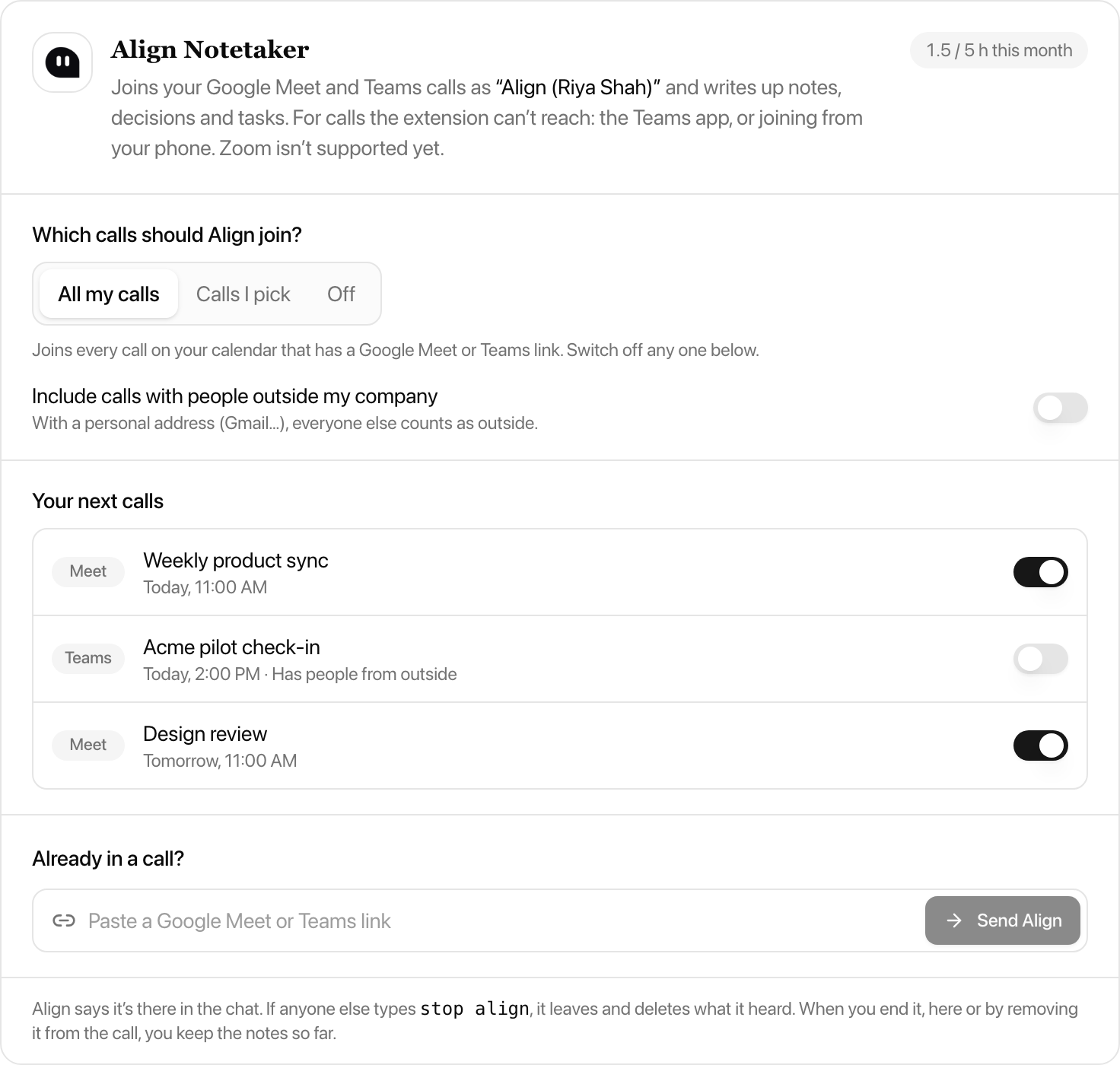
Which calls it joins
| Setting | What happens |
|---|---|
| All my calls | Joins every meeting on your Google or Outlook calendar that has a Google Meet or Teams link. Calls with people outside your company are left out unless you include them. Switch off any single call from the list. |
| Calls I pick | Joins only the calls you switch on, one by one. |
| Already in a call? | Paste the call's link and Align asks to join within seconds. |
| Off | Never joins. The extension still takes notes in calls you take in your browser. |
Nobody is surprised
- It always says it's there, in its name, on its camera and in the chat.
- Anyone in the call can type "stop align" in the chat. It stops listening on the spot and leaves, and nothing said after that is kept.
- The notes up to that point are still written up, the same as when you end it from Align or remove it from the call.
- A workspace owner or admin can turn the notetaker off for the whole team.
- The recording is deleted from our meeting-bot provider once the notes are written.
Tutorial
Set up Align for Calls in a minute
Step 1 of 7
Add it to your browser
Install Align in Chrome, Brave or Microsoft Edge. It runs on Google Meet, Microsoft Teams on the web and the Zoom web client, and nowhere else.
The details that matter
Small things that add up to a meeting people trust.
Extension: captions in, no audio
The extension reads the call's live captions. It never records audio or video, and no bot joins.
Ask Align mid-call
“What have we decided so far?” gets an honest answer, including “nothing yet”.
Notetaker: says who it is
The notetaker joins as “Align (your name)”, says hello in the chat, and anyone can type “stop align” to send it away.
Recap to the room
Email the decision, key points, actions and open questions to attendees, matched from the invite and your team.
Unfinished? Open a Room
When a call didn't land, the transcript and the invite's linked docs go straight into an Align Room.
Prep before you start
What moved since last time, merged PRs, new blockers and everyone's standup, before anyone says a word.
Guides
- AI meeting notes without a botHow bot-free note-taking works on Google Meet, Teams and Zoom, and what to check before you pick one.Read the guide
- An AI meeting assistant with no bot in the callWhy some teams don't want a recorder joining, and what you give up (and don't).Read the guide
- From the call to Jira ticketsWhat happens after the notes: owned tickets in Jira or Linear, approved in one click.Read the guide
Questions
Both are Align for Calls. The extension is free and unlimited: it runs in Chrome, Brave or Edge on Google Meet, Teams and Zoom web calls, gives live notes during the call, and no bot joins. The notetaker joins Google Meet and Teams calls as "Align (your name)", so it works for calls you take in the Teams app or on your phone; notes arrive when the call ends, and every plan includes notetaker hours. Most people use the extension and send the notetaker to the calls the extension can't reach.
No. Only the person who presses Start needs the extension, and only the person who sends the notetaker needs an Align account. By default Start posts a line in the call chat so everyone on the call knows Align is taking notes.
No. It reads the call's live captions (Start turns them on where it can) and nothing else. Caption text from calls you start is sent to Align to draft notes and the wrap-up.
Yes, in the browser: Google Meet, Microsoft Teams on the web and the Zoom web client. It doesn't run inside the Teams or Zoom desktop apps. On Teams and Zoom, Start tries to switch captions on for you; if the meeting hides them, turn captions on once and Align picks them up. For any other call, open an Align Room in the browser.
Only if you choose the notetaker. The extension runs in the browser of the person who presses Start and reads the captions on their screen, so there is no bot in the participant list, no extra guest to admit and nothing for IT to allow. The Align Notetaker does join, openly, as "Align (your name)", for calls the extension can't reach.
Align matches the call to your calendar and shows the tickets that moved and the PRs that merged since the last related meeting, what's blocked or overdue, open decisions, a suggested agenda and, for a standup, everyone's standup. It only shows work you can already open in Align. Not on your calendar? You still get your own standup to copy.
Yes. Discard deletes the capture, its transcript and the tasks it suggested from Align. Connection keys are per browser and you can revoke them any time.
Chrome, Brave and Microsoft Edge. Brave installs the Chrome Web Store release, while Edge can use Microsoft Edge Add-ons or the compatible Chrome Web Store release.
Not yet. Since March 2026 Zoom only lets an outside notetaker join with a token from a signed-in Zoom user's own Zoom app, and we haven't shipped one. The Align extension takes notes in Zoom calls you join from the browser.
Every plan includes notetaker hours each month: 3 on Free, 10 per person on Team, 25 per person on Business, and no limit on Enterprise. The browser extension stays free and unlimited on every plan.
Only for All my calls and Calls I pick, so Align knows when your calls are. Pasting a call link works without it. Align reads your calendar and never changes it.
You do, in Align. Anyone in the call can leave their email on the link Align posts in the chat, and the notes are emailed to them when they're ready.
No.
Let the busywork do itself.
Extension and notetaker for Meet, Teams and Zoom. Try it with your team’s next meeting.